About 7–12 min to explore
Never the same blob twice
Build your own ooey, gooey, animated blob and then explore how you could use my dynamoblobs library to create organic image wrappers, spotlight demos, and more.
I’m a really big fan of organic, amorphous, ever-changing shapes. I just think they’re neat. If your page is feeling a bit blocky, you can throw one behind a headline or use it to crop an image into “very much not-a-square” and instantly things feel less buttoned up and stodgy. The ones in
Start here with the shape controls, then move down the page to see what happens when a blob becomes part of a background composition or a spotlight revealing a hidden picture. Each demo has its own controls. On smaller screens, you’ll find them beneath the preview.
Shape a blob
Lumpiness decides how far each point can stray from a perfect circle, so low values give you a smooth pebble and high ones get properly lumpy. Points sets how many bends run around the outline, higher values create more complex shapes.
Hit morph and the blob begins to slowly reshape its outer geometry while gently contracting and wobbling a bit as it goes. Morph speed and morph intensity set how quickly and how dramatically it changes. Drift sends the blob wandering around the frame, bouncing off the edges at whatever drift speed you pick.
Shuffle gives you a new shape, color, size, number of points, and lumpiness. The share link saves the shape’s starting point and your settings, but it’s not an exact snapshot of where the blob is right now.
Controls
Build a background
If you’re worried about your blob becoming lonely, you can always overlap several of them to create a composition. Switch between mid-century, contemporary, and bokeh below to see how dramatically color, shape, and softness adjustments can change the result. All three are built from the same blobs, just with their values tweaked (and in blokeh’s case some CSS blur applied.)
Mid-century sticks to a few soft, rounded shapes in warm, earthy colors, while contemporary piles on the points and lumpier edges. Bokeh harks back to my favorite lock screen of all time from the iOS 7 days of, like, 2013, and makes me feel old by saying things like that. Pause layer animation freezes everything if you want a closer look.
Controls
Turn the shape into a picture frame
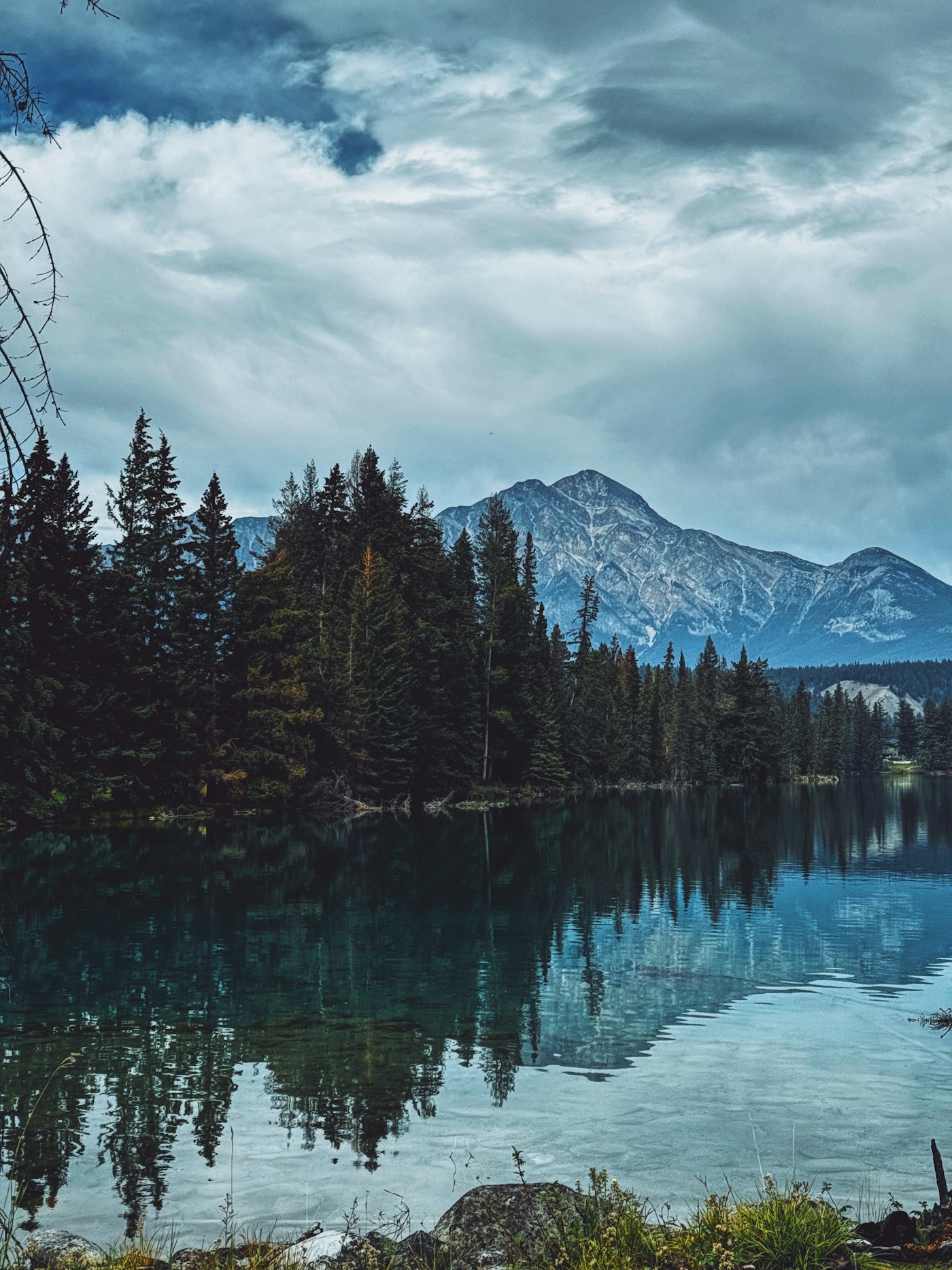
A blob doesn’t have to be filled with a color. Use its outline as a frame instead, and whatever’s inside shows through while everything outside disappears. That’s called clipping, and it doesn’t change the image itself. The whole original photo is still there, just hidden from view past the edges of its blob container.
Choose an image, then turn on show outline to trace the edge. Raise lumpiness to make the cutout less regular and see which parts of the picture it reveals.
Controls
Photo by
Reveal one picture through another
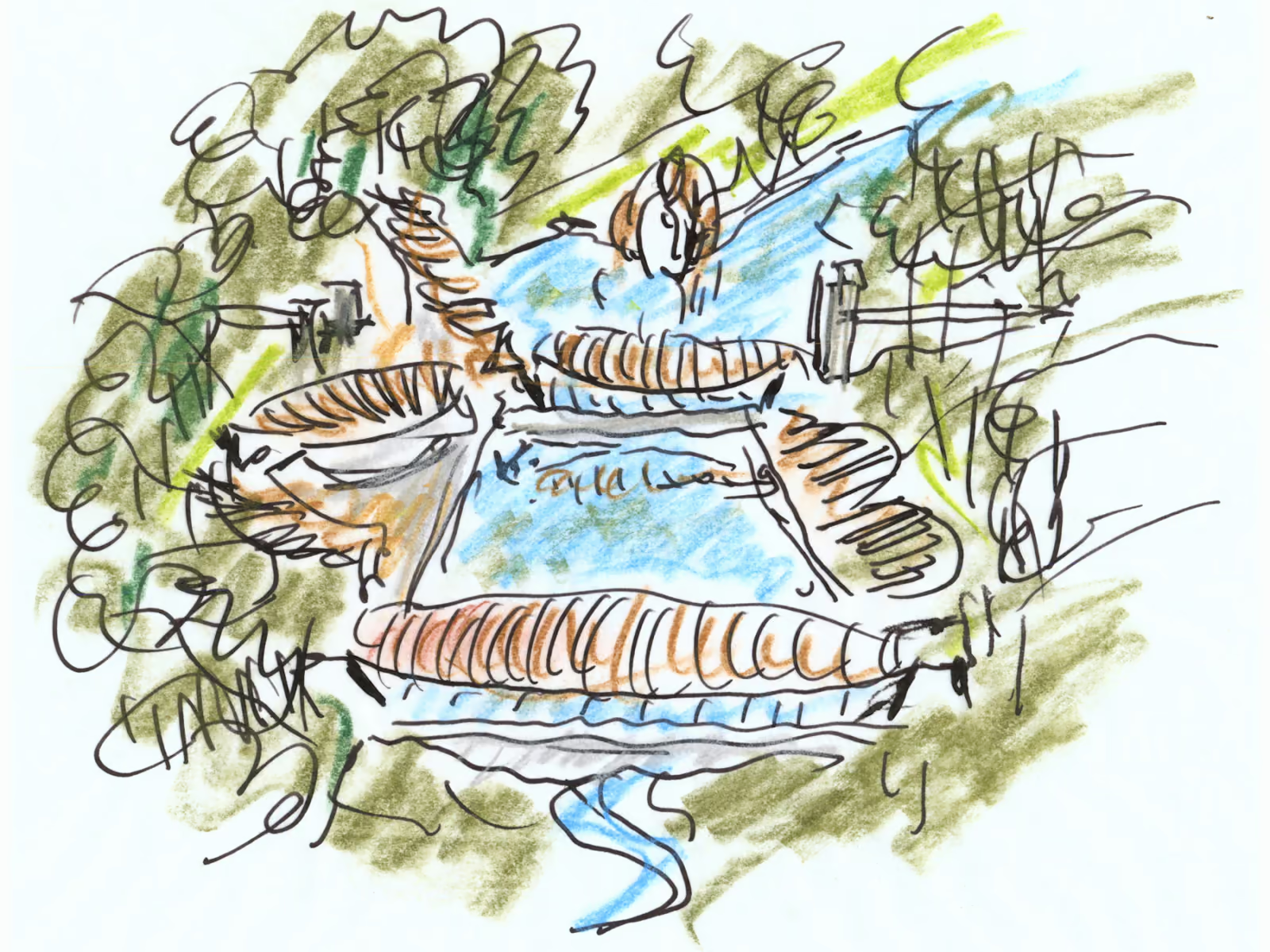
What if you layered two pictures in the same frame? In this demo, a blob is leveraged as a mask to create a window that reveals one picture inside of it and leaves the other visible all around it. Here, that’s an early sketch of the Crystal Bridges Museum and a photo of the finished building, so you can compare the idea with the place it became.
Edge softness blurs the boundary between the pictures. A crisp edge makes the reveal obvious; a soft one blends the two views together. You can add more spotlights and watch how they drift about and blend together when playback is on.
Controls
The photo shows through the sketch. The views are similar, but do not line up exactly.
Crystal Bridges Museum of American Art. Sketch and photography:
Take it home with you
If these experiments have given you an idea, dynamoblobs is lightweight, framework agnostic, and open source. Put a blob somewhere unexpected, and let me know what you make!
For another way to make a page feel a little more organic, try its sister library